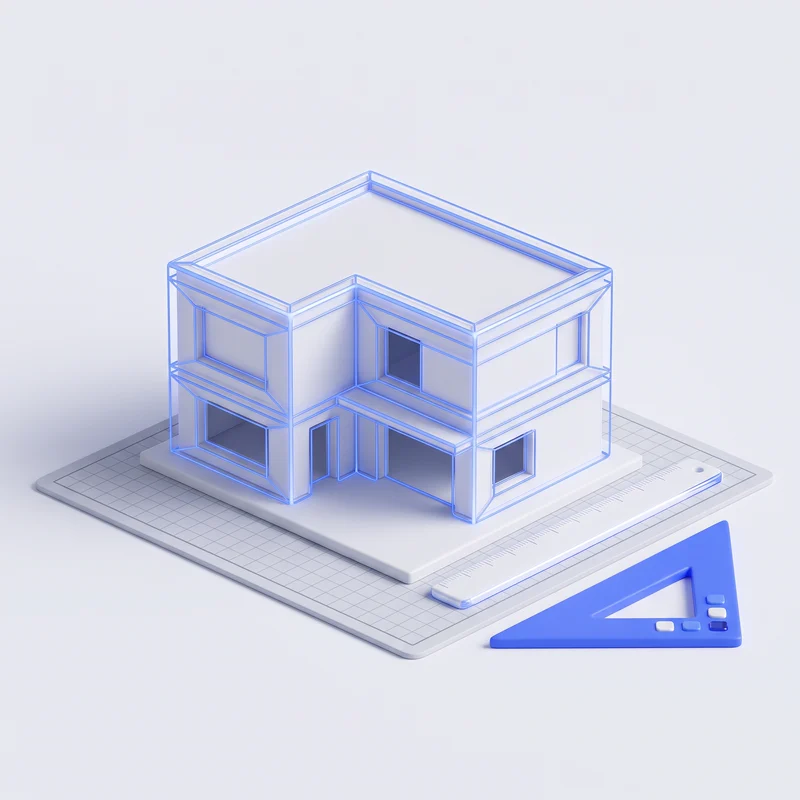
Your plans become photorealistic 3D renders
Upload a photo, a sketch or an image export of your plans: RenderPro generates renders that stay consistent from one view to the next, materials included.

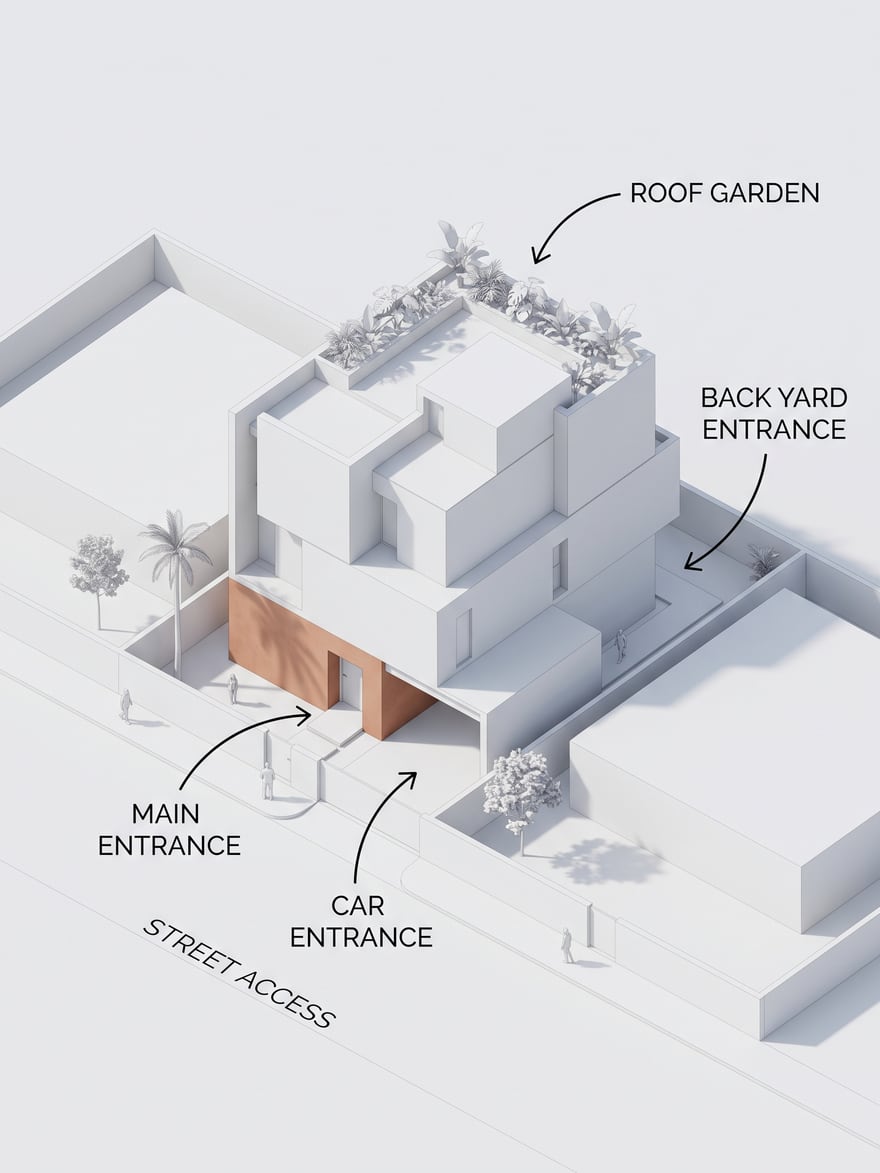





Overview
RenderPro on video
The result
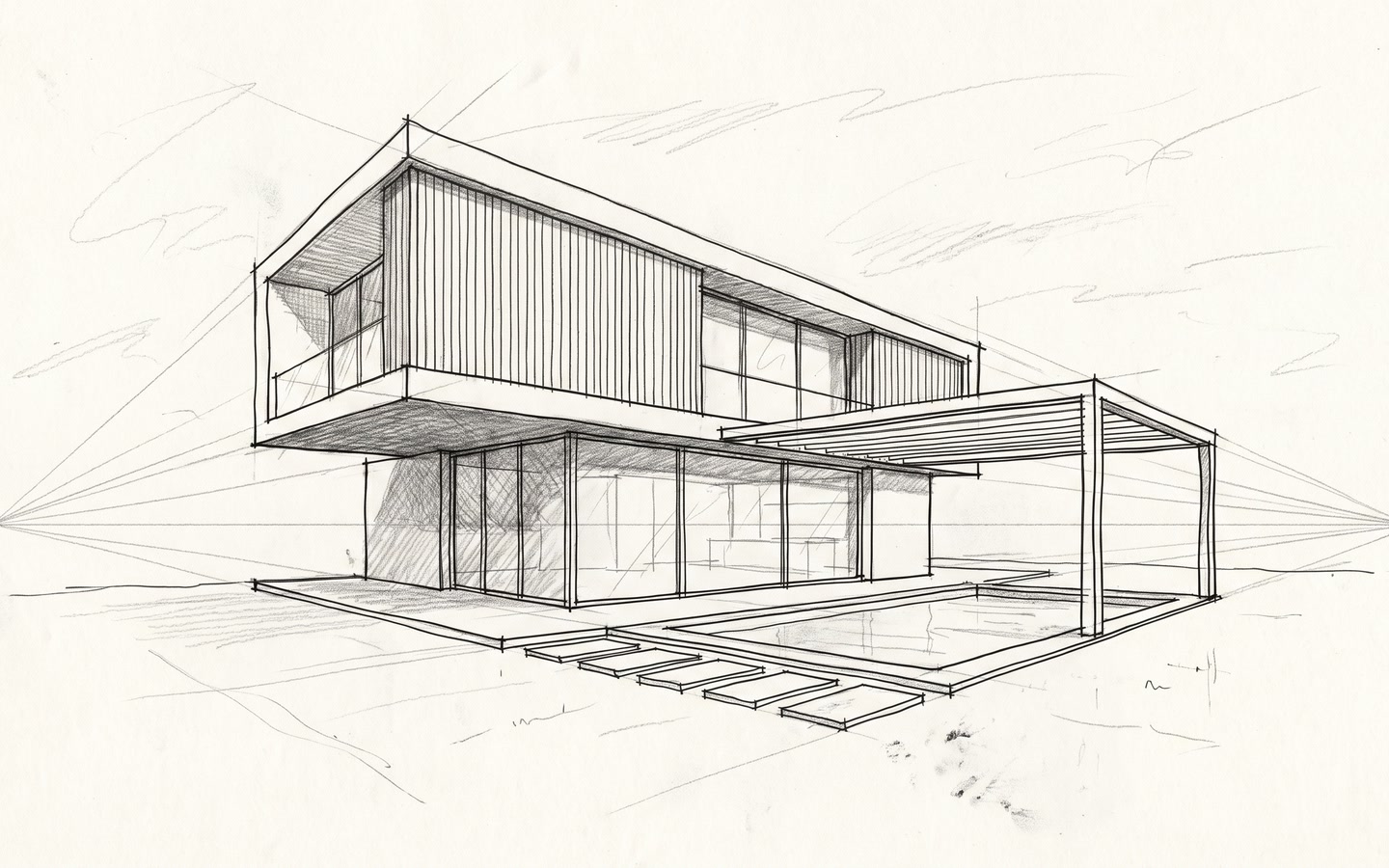
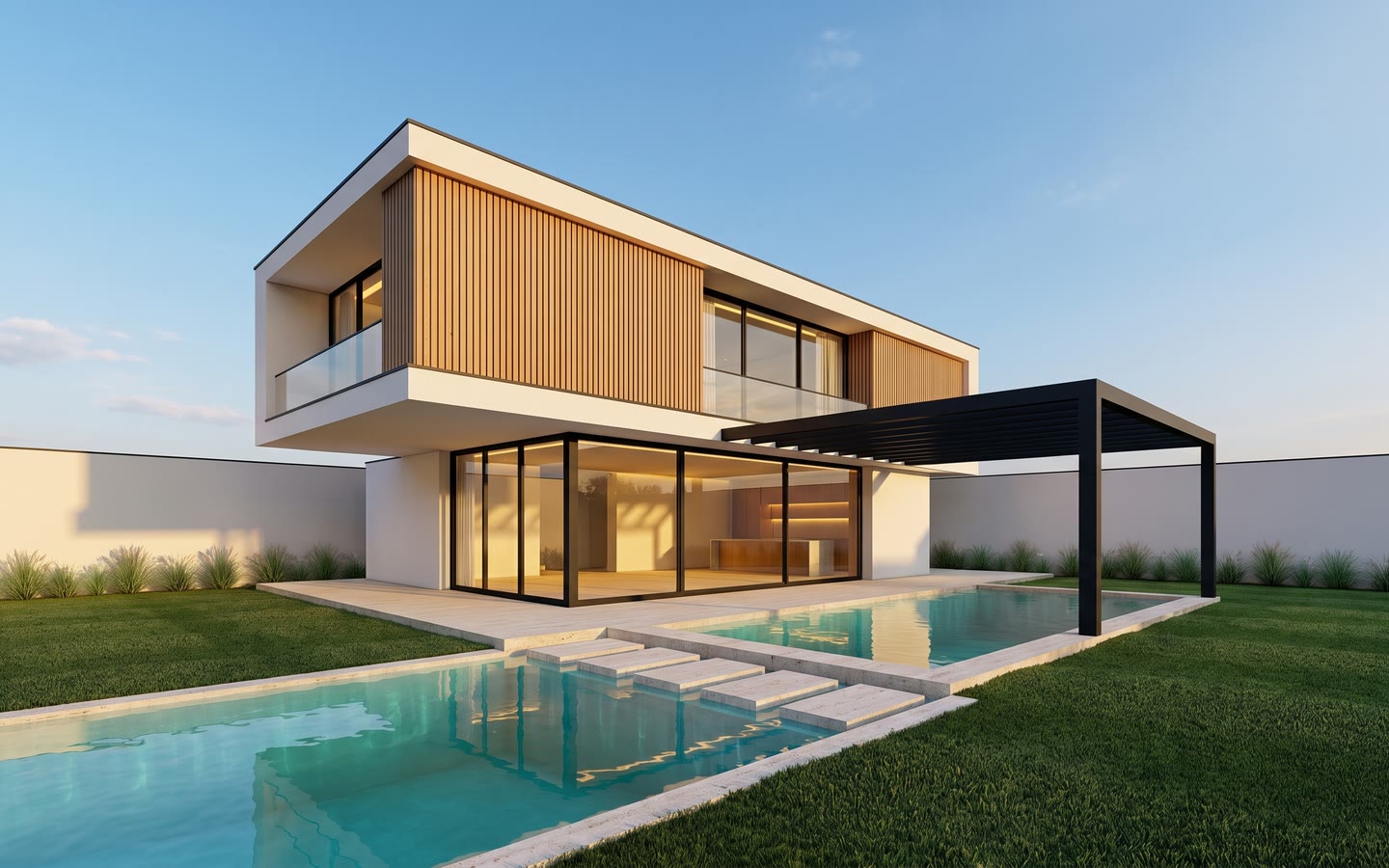
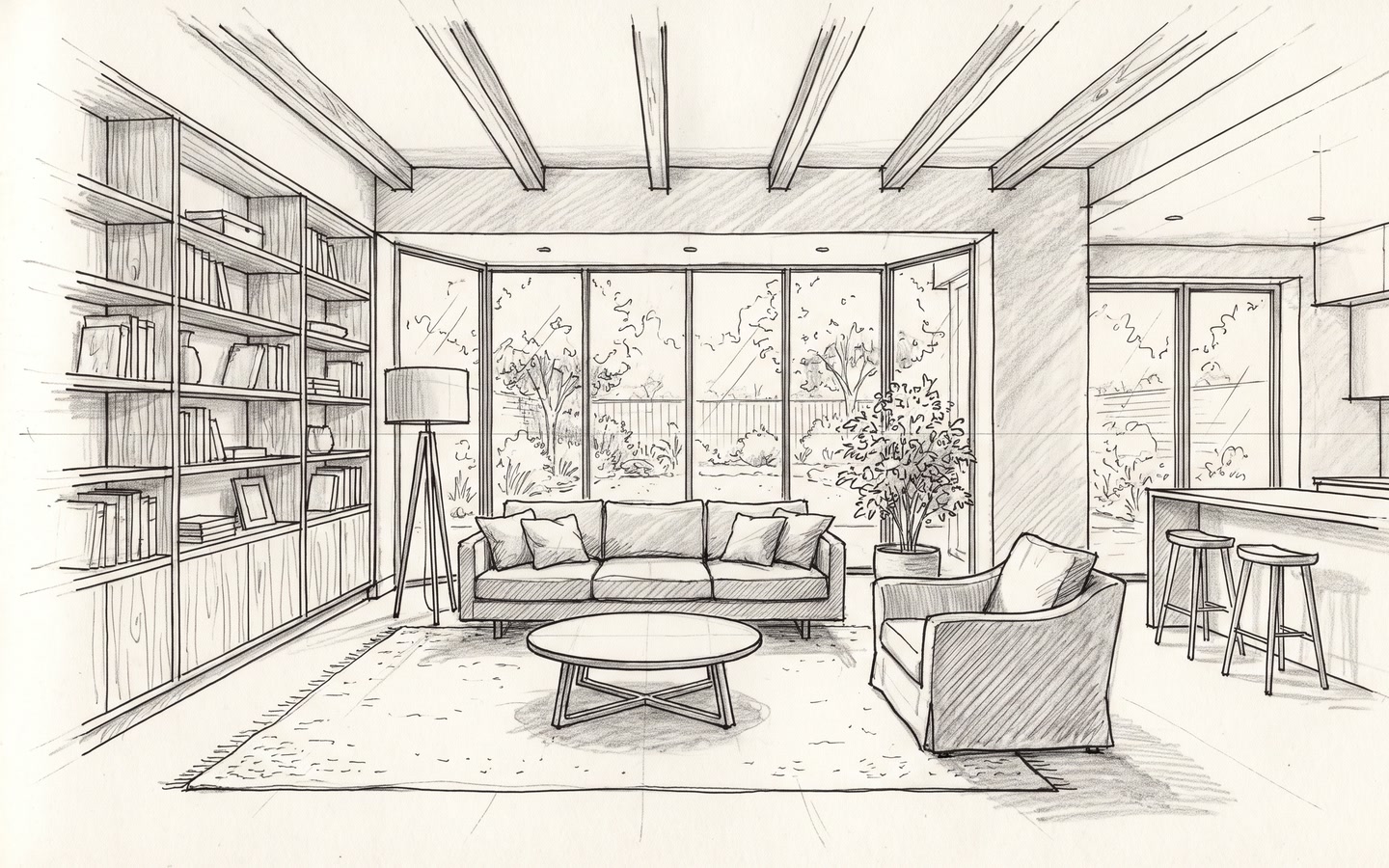
From sketch to photorealistic render
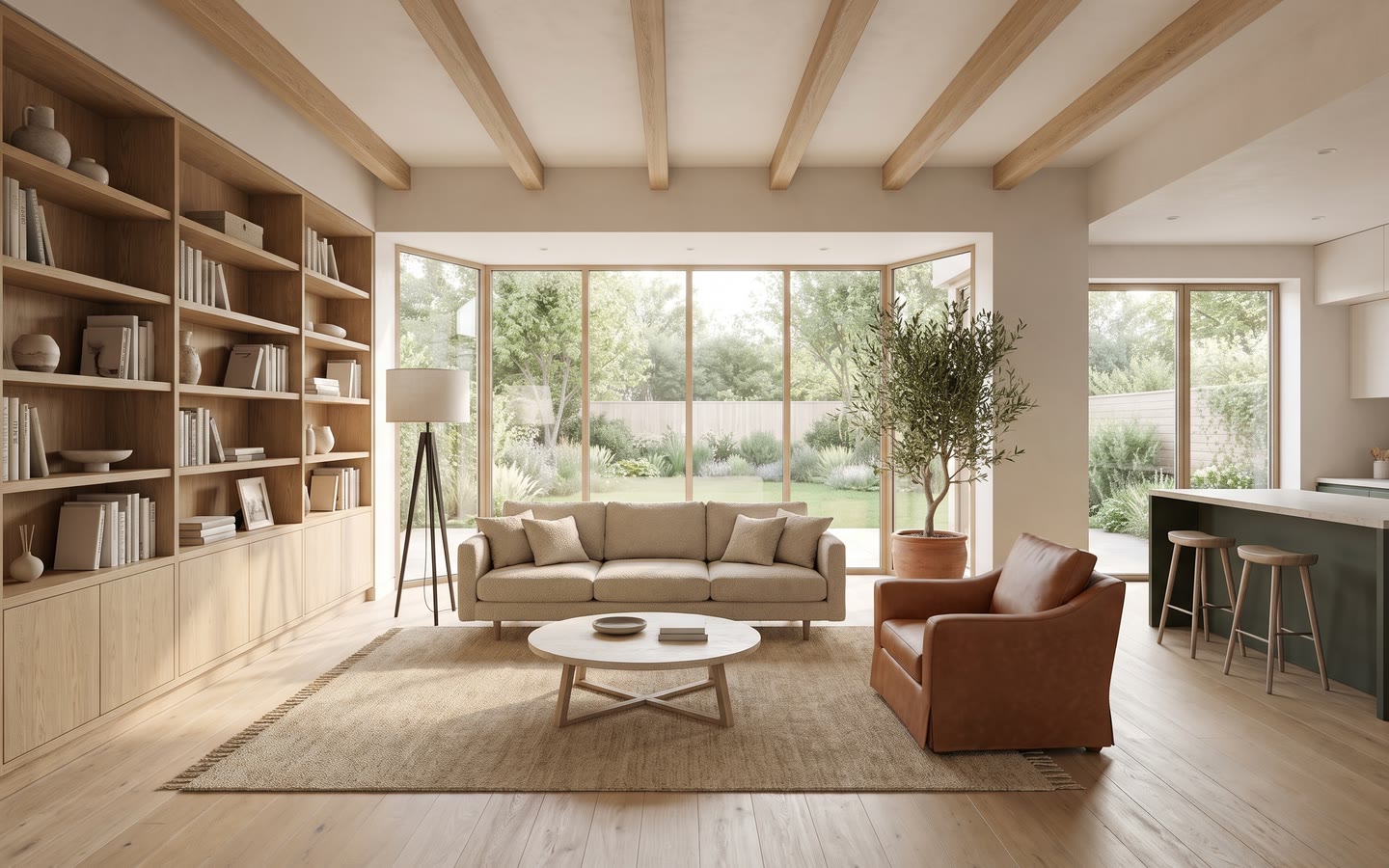
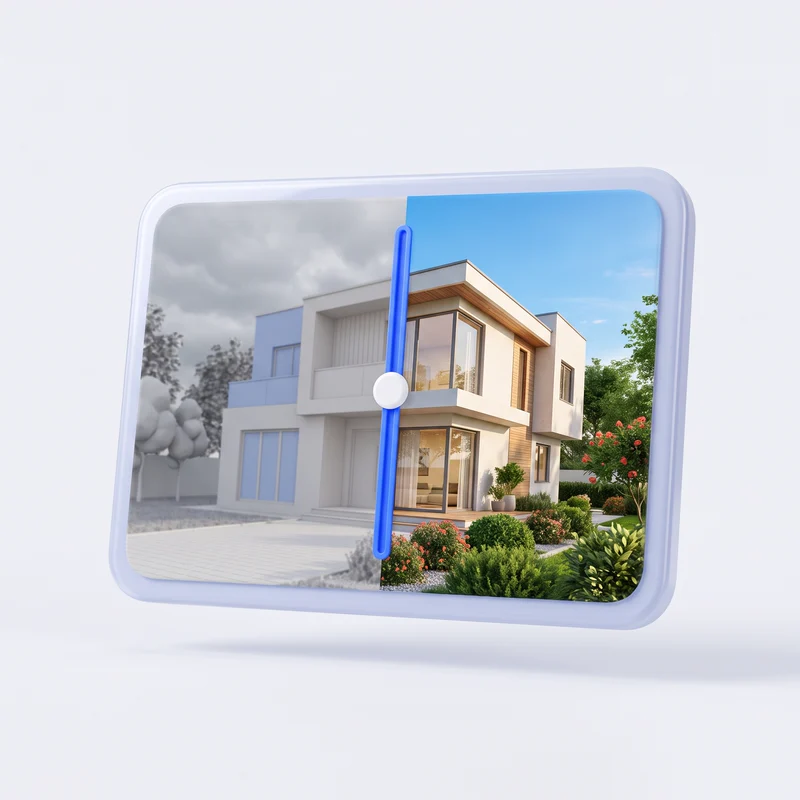
Drag to compare. Every material, every opening, every proportion kept — RenderPro doesn't reinvent your project, it reveals it.
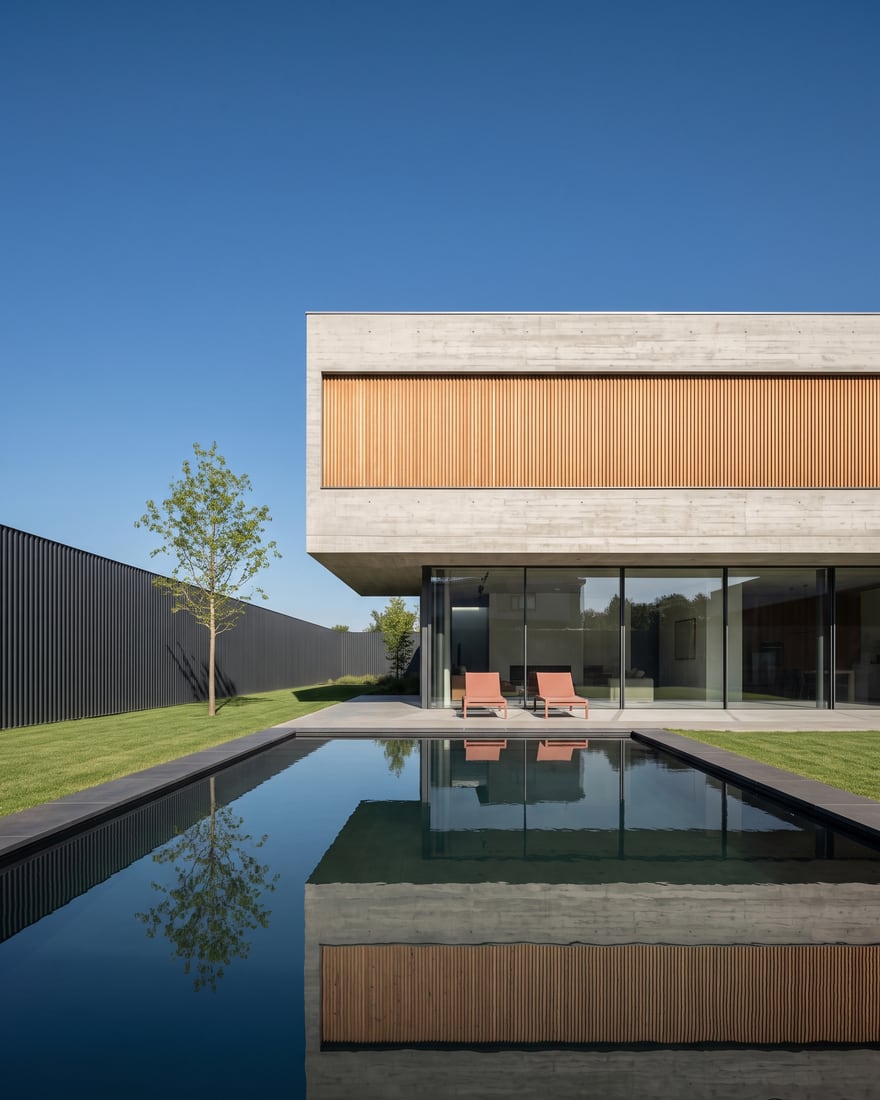
Exterior
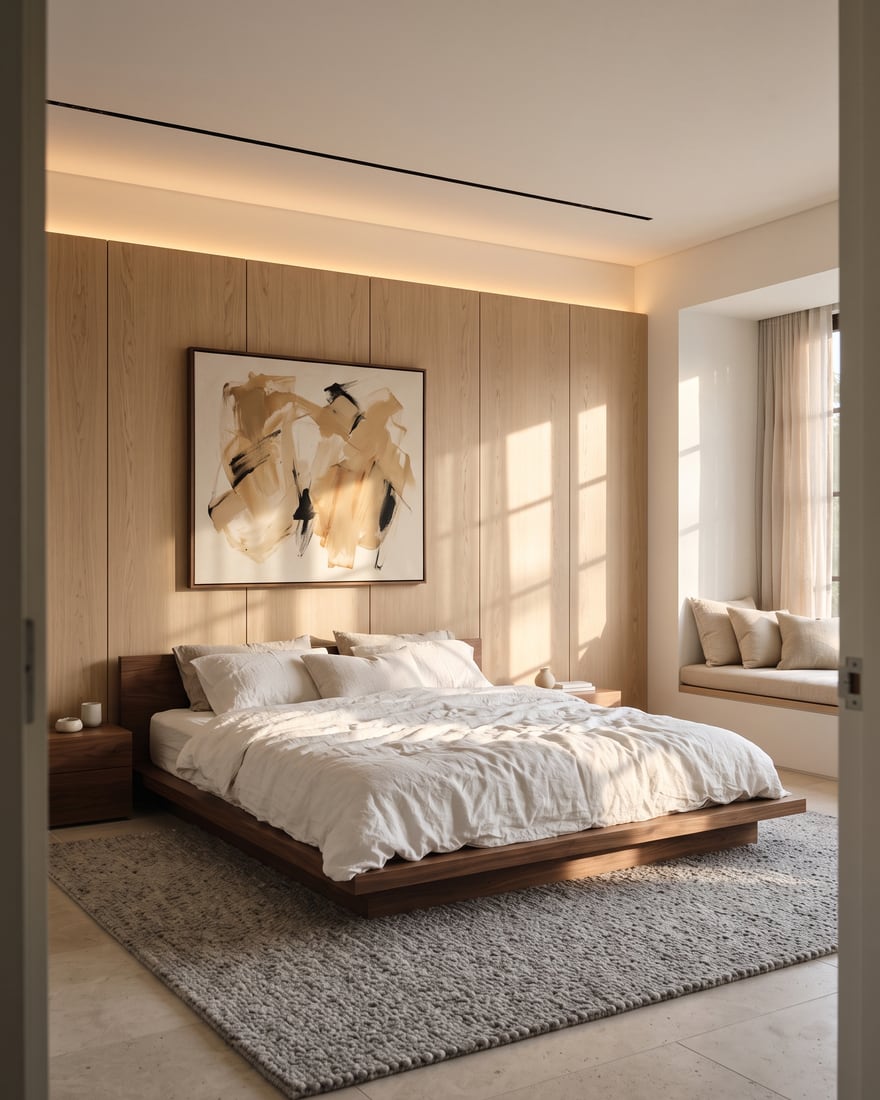
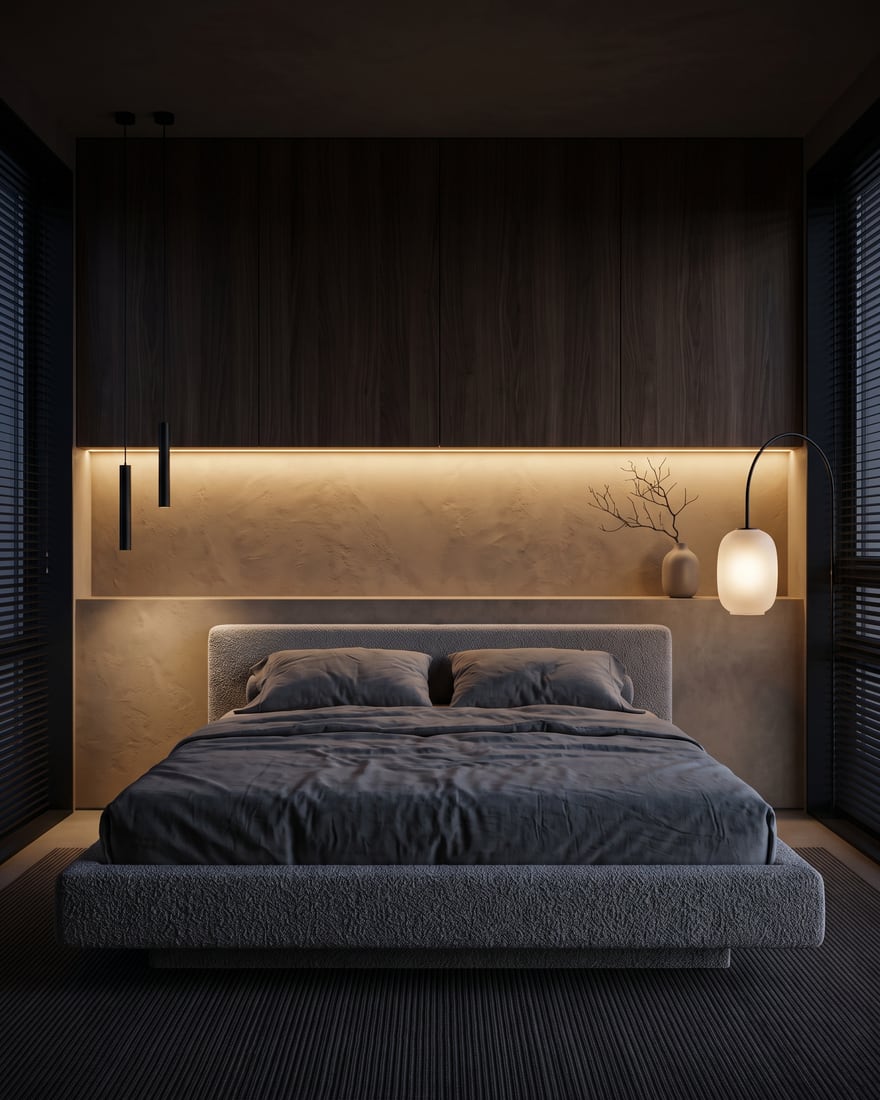
Interior
How it works
Simple, consistent and automated
Upload an image: RenderPro detects the materials, remembers them and reuses them in every new render of the project.
Add what's missing.
Attach the photo of a piece of furniture, a person or a tree and say where it goes: RenderPro works it into the render, keeping the rest of the image as the reference. A moodboard is enough to furnish an empty room.
Point. Comment. It's changed.
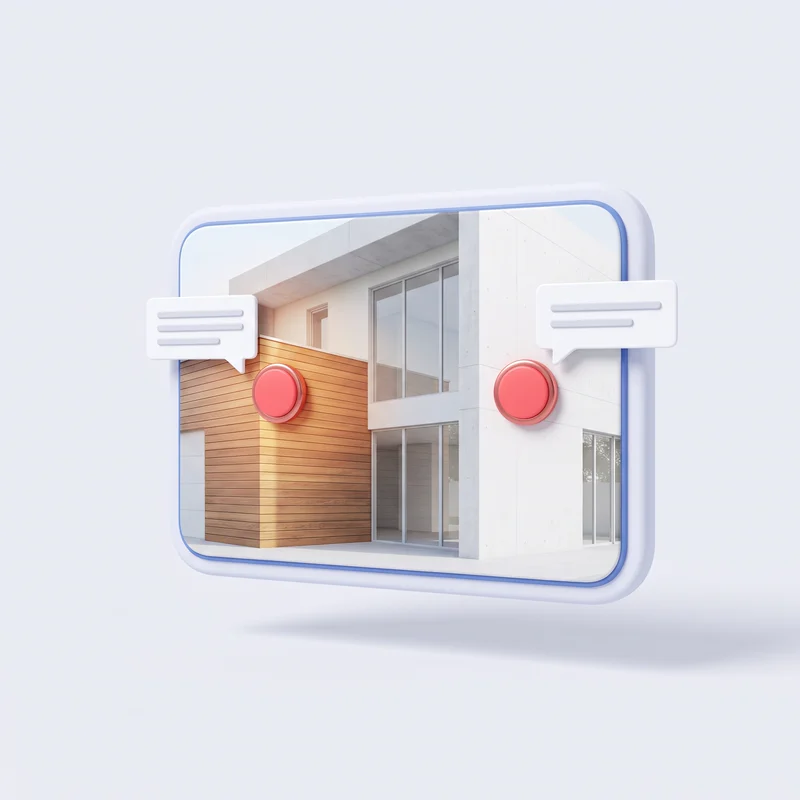
Click the render, write what should change. Several comments, one click.
One image. Every direction.
Start again from any render to try a new direction. Nothing gets lost.
Two engines, one project
Compare both engines on the same request and keep the one that fits: materials and history stay shared.
Enhance
A blurry image turns sharp.
Send a weak render or a low-resolution photo: Enhance makes it sharp, detailed and bright, without changing the composition.
Key features
Built for building professionals
More variants, without redoing your renders
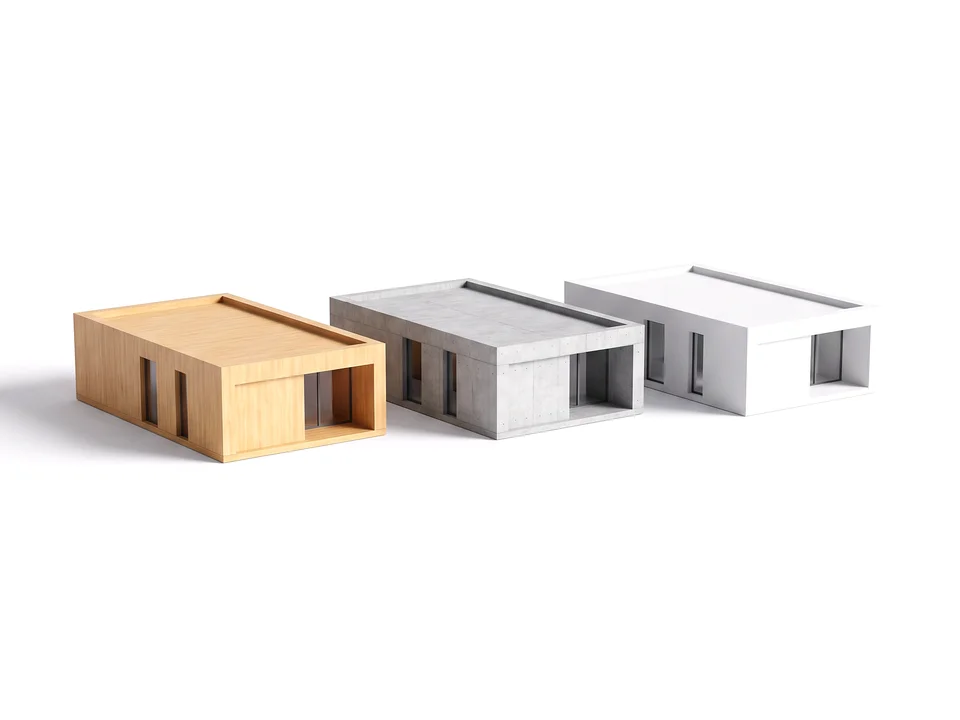
Technical projects everyone understands
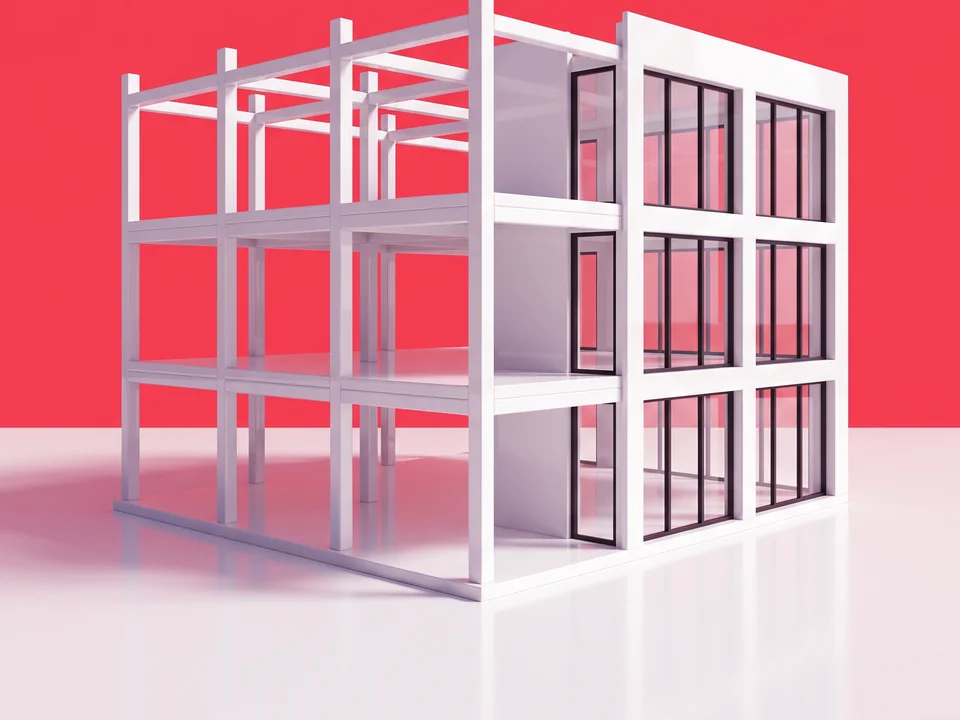
From drawing to presentation visual
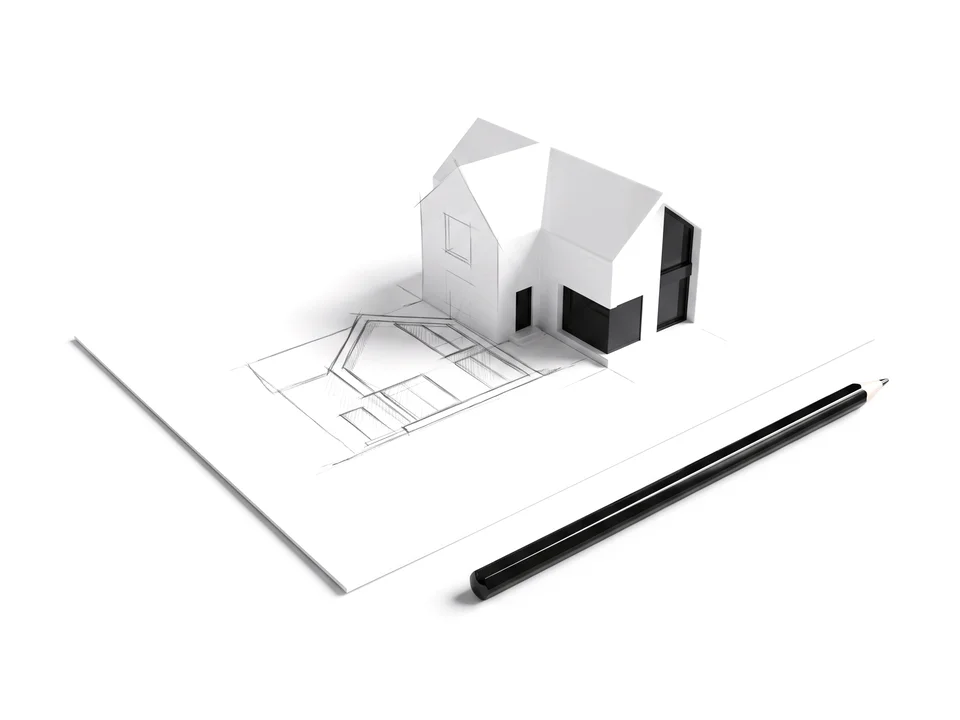
The project shown before the first stone
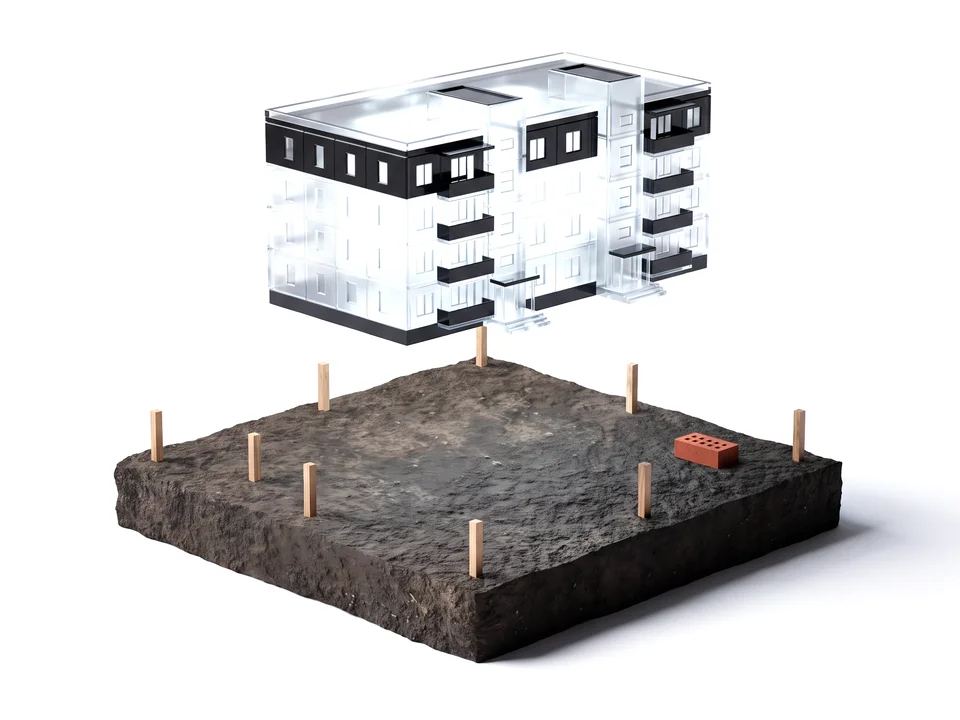
Ambiances
A preset for every mood

Exterior day
Crisp natural light, sharp cast shadows, clear sky.

Exterior night
Facade lighting, warm window glow, controlled dark sky.

Interior day
Interior viewpoint lit through the windows, soft ambient fill, no artificial light.
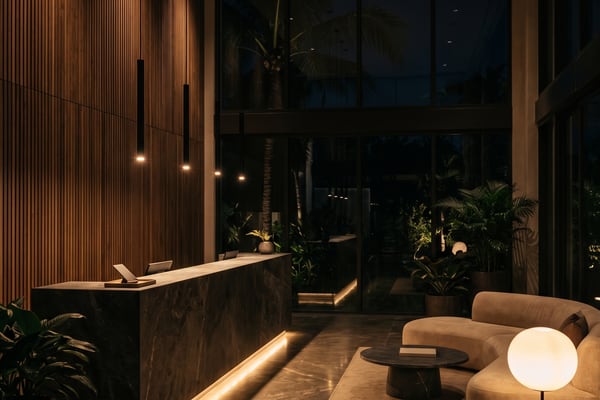
Interior night
Interior viewpoint at night: ceiling fixtures and lamps, dark windows, warm mood.
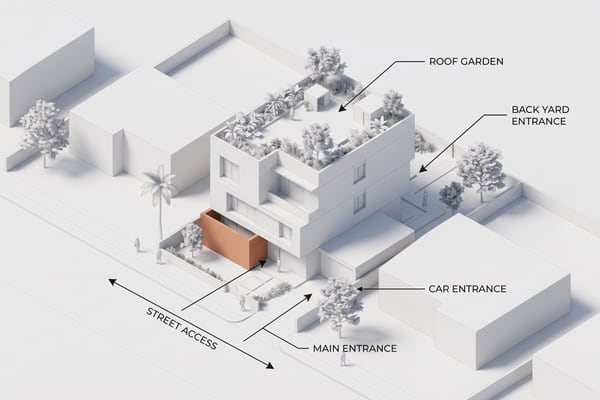
And a fifth one, deliberately not photorealistic
Sketch
Visible pencil strokes, loose massing, minimal shading — the design-review render, for when it is too early to show photorealism.
Pricing
Pick the volume that fits your projects
Same engines, same ambiances: only the number of credits a month changes.
Discovery
- 1,000 credits / month
- Two engines: Visio and Pixel AI
- 5 render ambiances
- Comment, Add and Enhance
- Built-in assistant
Standard
Most popular- 3,000 credits / month
- Two engines: Visio and Pixel AI
- 5 render ambiances
- Comment, Add and Enhance
- Built-in assistant
Pro
- 8,000 credits / month
- Two engines: Visio and Pixel AI
- 5 render ambiances
- Comment, Add and Enhance
- Built-in assistant
FAQ
Everything you need to know before you start
Answers to the questions we hear most about RenderPro.
The new quota applies immediately and replaces the old one — no stacking, no carryover.

Yes. Every render you generate is yours, with no commercial-use limit.

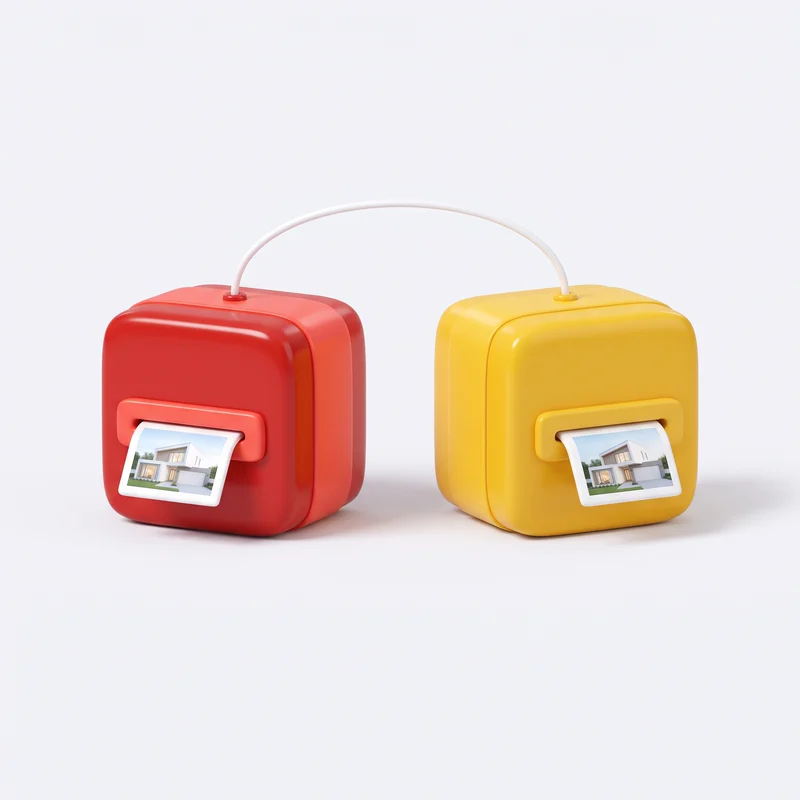
Visio (red) renders straight at the chosen size, up to 4K, with the most detail; Pixel AI (yellow) follows precise instructions more closely. You pick whichever fits each render best, any time. Edits by comment always use Pixel AI.
Generations are blocked until renewal or until you switch tiers — never a surprise charge.

Yes, no commitment. Your access stays active until the already-paid period ends.

With the Comment mode: click the render where it should change, write the change (up to 8 comments), then Apply. The rest of the image is kept and the original stays in the project tree.
The Assistant button opens a chat that knows all of RenderPro and guides you step by step. It also answers your architecture and materials questions.

Images: JPG, PNG, WebP or HEIC, up to 15 MB — a photo, a scanned sketch, a screenshot or an image export of a view from your software (SketchUp, Revit, AutoCAD, Archicad, Rhino). Project files (.skp, .rvt, .dwg, .pln, .3dm) are not read directly: export the view as an image first.

Yes, with Enhance: attach the render with the paperclip, tick what should improve (sharpness, detail, light, materials, sky, planting, life and atmosphere) — or describe it yourself — and pick the strength. Each item can take a reference image. The framing is kept.
RenderPro starts from your image and asks the engines to keep the framing, the volumes and the openings. The result is still AI generation: check the details, and fix what needs fixing with Comment.