
SketchUp AI rendering, without a render engine
No plugin to install, no export, no materials to assign: capture your view, attach it, get a render. The same path works from any 3D software.
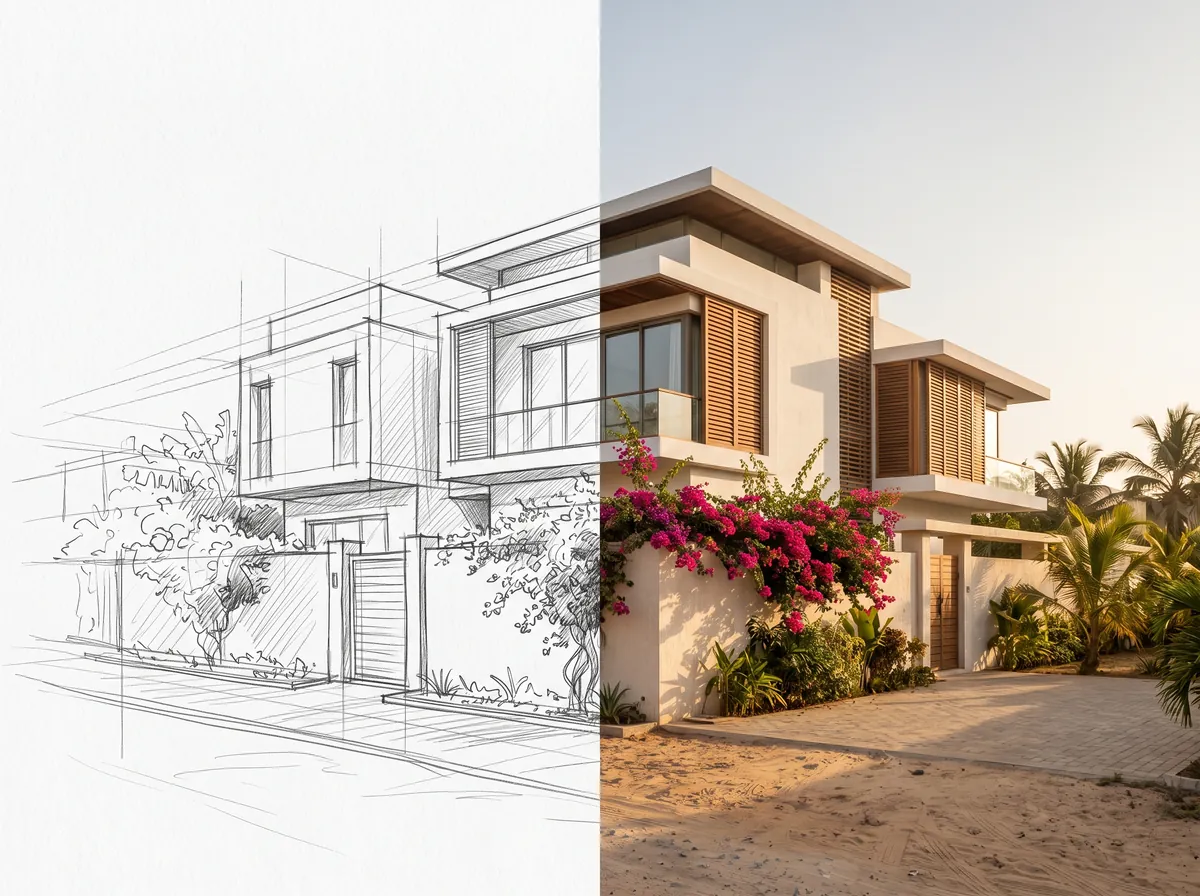
How it works
- 1Frame your view in SketchUp and screenshot the 3D window.
- 2Attach the image in RenderPro with the paperclip.
- 3Pick the ambiance: day, night, interior, exterior, golden hour, rainy weather.
- 4Send the render, then enhance it or edit one area by comment.
A screenshot, not an export
RenderPro reads neither SKP, OBJ, FBX nor DWG — it reads an image. That is a deliberate limit, and it is also what makes it immediate: no extension to install in SketchUp, nothing to clean up in the model, no textures to prepare. The wireframe or shaded view already on your screen is a valid input.
What it replaces, and what it does not
For a concept image, an ambiance variant, a presentation board or a round trip with a client, you save the time spent setting materials and lighting. For a final deliverable where every construction detail has to be exact and controlled, a traditional engine keeps the edge: it renders your scene, not an interpretation of your image. Many practices use both — AI early, the engine for the final image.
Revit, Archicad, Rhino, 3ds Max, AutoCAD, Blender
Since the input is an image, the originating software is irrelevant. A Revit view, an Archicad window, a Rhino viewport, a 3ds Max preview, an AutoCAD elevation printed to PNG or a Blender viewport all follow exactly the same path. A 2D plan works too, with the Furnished 3D plan ambiance.
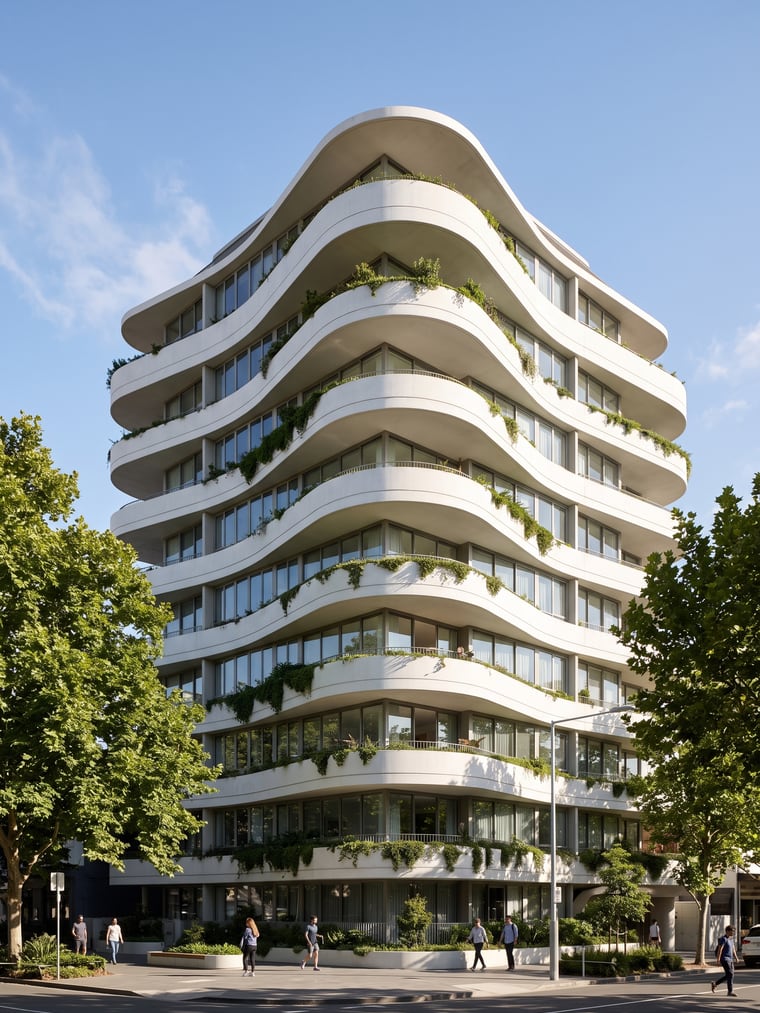
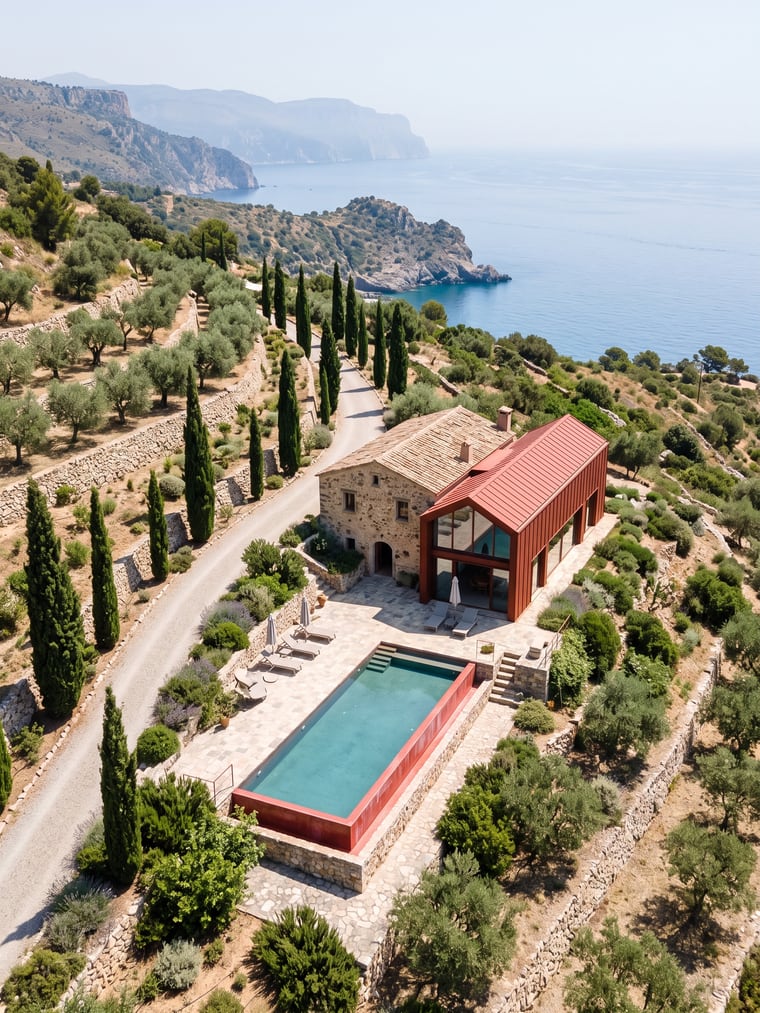
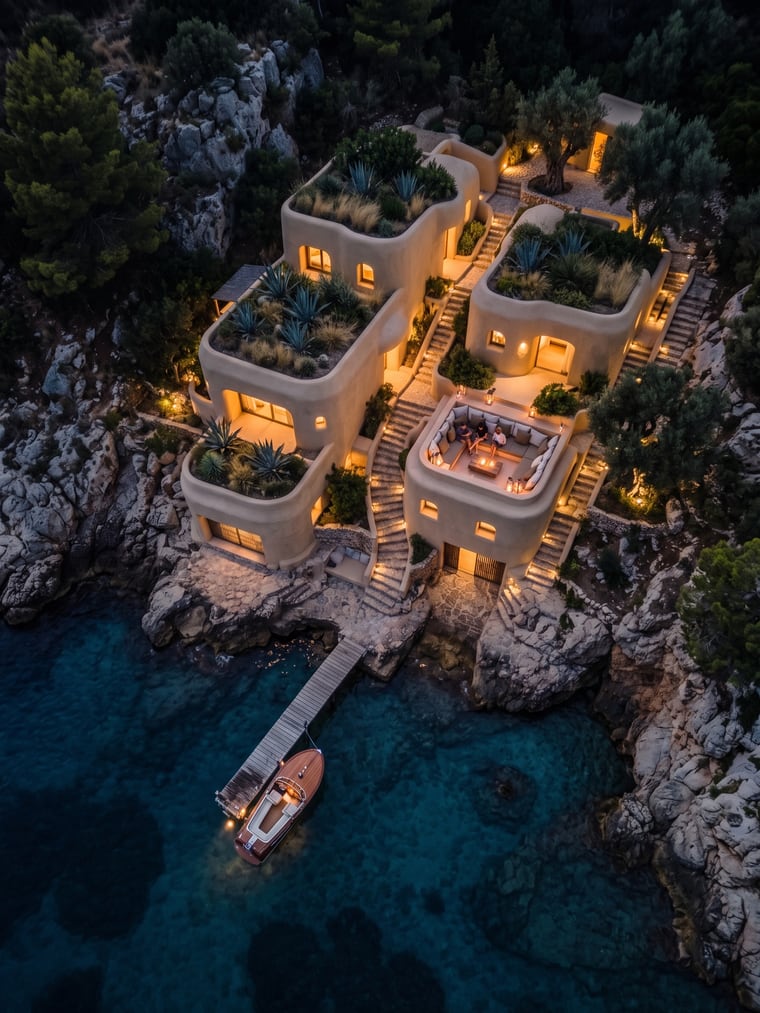
Examples

Frequently asked questions
- Do I need a SketchUp plugin?
- No. RenderPro is a website: you drop an image into it. Nothing is installed in SketchUp.
- Are my model’s textures kept?
- Those the screenshot shows, yes — the engine keeps visible materials. For the ones it does not show, write them in the request or add a reference image.
- What capture resolution should I use?
- As sharp as you can: the engine reads edges. You then choose the render size — 1K, 2K or 4K — independently of the capture’s own size.
Try it on your own image
Create your account, drop in an image, run a render. The plans and what each render costs are on the pricing page.